Best Lists
Best Video Conferencing Software for Small Business in 2026
7 best video conferencing tools for small business compared: Zoom, Google Meet, Teams, Webex, GoTo Meeting, Whereby, and RingCentral. Real pricing, real tradeoffs, clear verdict.
The short version: Zoom is the default. But “default” and “best” aren’t the same thing. Google Meet is practically free if you already pay for Google Workspace. Teams is already on your laptop if you’re on Microsoft 365. And Whereby might be the sanest option for client calls you’ll ever try.
I’ve tested every major video conferencing tool that a small business would actually consider. Not enterprise-grade stuff with six-figure minimums. Real tools, real pricing, real tradeoffs.
Here’s what I found — and who each one is actually for.
The Quick Comparison: Best Video Conferencing Tools for Small Business
Before we dive in, here’s the snapshot. All pricing is as of October 2026 — check each product’s pricing page directly since rates change. Last updated: October 2026.
| Tool | Best For | Free Plan? | Starting Price | Free Participant Limit |
|---|---|---|---|---|
| Zoom | General-purpose reliability | Yes (40-min group limit) | ~$13/user/month | 100 |
| Google Meet | Google Workspace users | Yes | $6/user/month (Workspace) | 100 |
| Microsoft Teams | Microsoft 365 users | Yes (60-min groups) | $6/user/month (M365) | 100 |
| Webex by Cisco | Security & compliance needs | Yes (40-min groups) | ~$14.50/user/month | 100 |
| GoTo Meeting | Pure meeting focus (no bloat) | No (14-day trial) | $12/user/month | N/A (trial only) |
| Whereby | Client calls, zero friction | Yes (45-min groups) | $8.99/month | 100 |
| RingCentral Video | Teams that also need phone | Yes (limited) | ~$20/user/month | 100 |
What I Looked For (And What I Ignored)
I cut anything that didn’t pass these four tests:
Works in a browser without making your client download something. Supports at least 10 people on a paid plan. Has mobile apps that actually function. Is available globally — not just in certain regions.
I ignored every “AI meeting assistant” upsell that’s being bolted onto every video tool in 2026. That’s a bonus, not a baseline. You can evaluate those separately once you’ve picked your core tool.
1. Zoom — Best Overall for Reliability
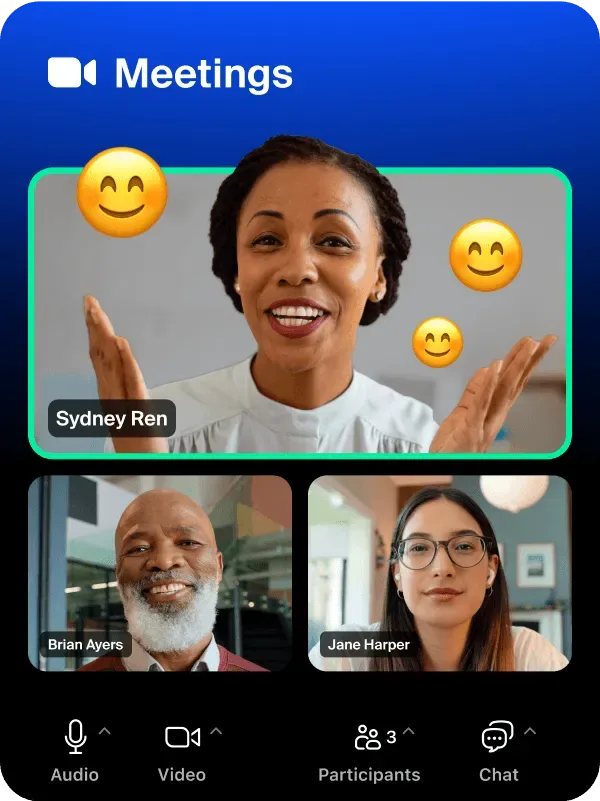
Zoom is the video conferencing default for a reason. It works. On bad internet connections. In countries where other tools struggle. With people who have never used video software before.
That last point matters more than people think. When you’re doing a client call, the last thing you want is “I can’t figure out how to join.” Zoom has 99% name recognition. Your 65-year-old client who barely uses email knows how to join a Zoom call.
Key Features
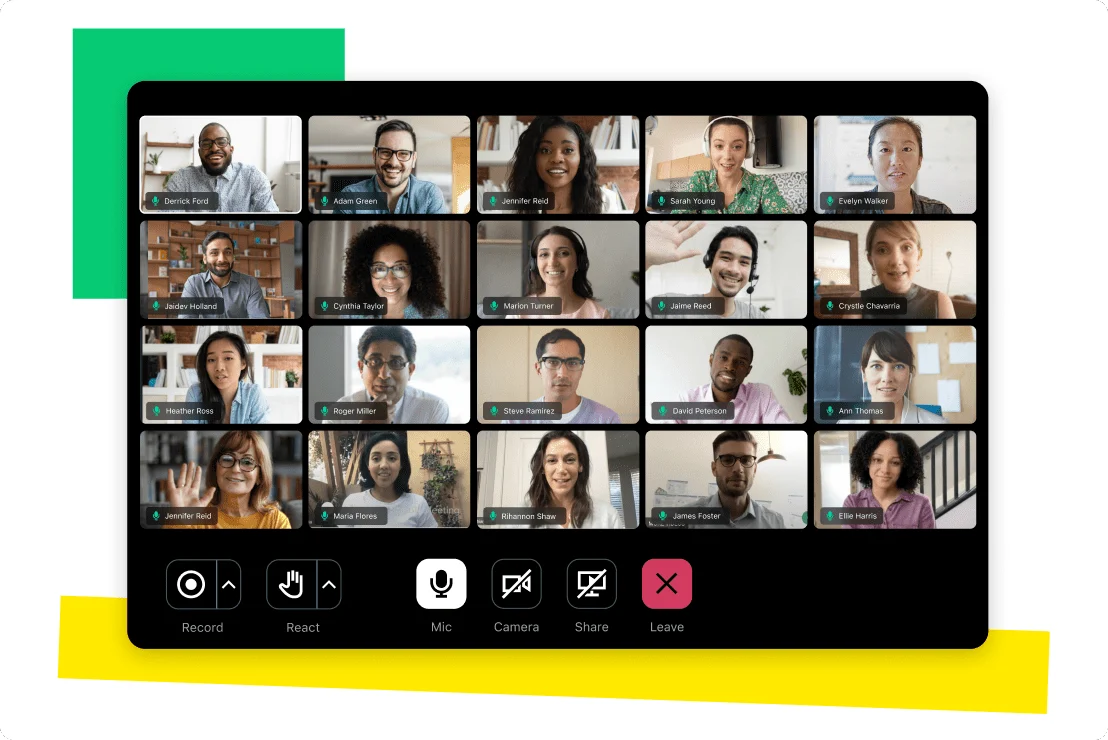
Group meetings up to 100 participants on the free plan. HD video and audio. Screen sharing, virtual backgrounds, and meeting recordings on paid plans. Breakout rooms (Pro and above). Waiting rooms. Zoom Phone add-on available if you want to consolidate phone + video. AI Companion for meeting summaries is now included in paid plans.
Zoom Pricing (as of October 2026 — verify at zoom.us/pricing)
| Plan | Price (annual) | Participants | Key Limits |
|---|---|---|---|
| Free | $0 | 100 | 40-min group meetings |
| Pro | ~$13/user/month | 100 | 30-hour meeting limit, cloud recordings |
| Business | ~$18/user/month | 300 | Managed domains, company branding |
| Business Plus | ~$22/user/month | 300 | Translated captions, workspace reservations |
Pros: Most universally recognized name. Excellent call quality. Works reliably on slow connections. Huge ecosystem of integrations. Great mobile apps.
Cons: Free plan’s 40-minute group limit will interrupt you mid-meeting. Pricing adds up fast if you have a large team. Feature sprawl — you’ll pay for things you never use.
Who it’s for: Teams that work with external clients and partners who might be on any device, in any country, with any level of tech comfort. If “it just needs to work” is your primary requirement, Zoom is your answer.
Who should skip it: If you’re already paying for Google Workspace or Microsoft 365, you have a perfectly good video tool included. Paying extra for Zoom on top of that is redundant for most small businesses.
2. Google Meet — Best for Google Workspace Users
Here’s something that surprises people: if your small business runs on Gmail and Google Drive, you’re already paying for Google Meet.
Google Workspace Starter starts at $6/user/month. That includes Meet with no participant time limits, meeting recordings saved to Drive, and 100-participant support. You’re not buying a video conferencing tool. You’re getting one bundled into your existing stack.

Key Features
HD video with up to 500 participants on Business Plus. Direct calendar integration — click a Google Calendar event and join in one click. Live captions powered by Google AI (impressive accuracy). Noise cancellation. Breakout rooms on higher tiers. Recording to Google Drive. Works entirely in Chrome with no software install required.
Google Meet Pricing (as of October 2026 — verify at workspace.google.com/pricing)
| Plan | Price (annual) | Meet Participants | Notes |
|---|---|---|---|
| Free (Google account) | $0 | 100 | 60-min limit for 3+ participants |
| Workspace Starter | $6/user/month | 100 | No time limit, recordings |
| Workspace Standard | $12/user/month | 150 | Noise cancellation, attendance tracking |
| Workspace Business Plus | $18/user/month | 500 | Breakout rooms, live streaming (10K viewers) |
Pros: Included with Workspace subscriptions. Zero friction for Google Calendar users. Excellent AI captions. No software to install — runs in any browser. Strong security (Google’s infrastructure).
Cons: Features are split across Workspace tiers, so breakout rooms require Business Plus. Less feature-rich than Zoom for power users. External participants need a Google account to host (though not to join).
Who it’s for: Any small business already on Google Workspace. You’re literally getting this for free as part of what you’re already paying.
Who should skip it: Teams not on Google Workspace. The free consumer Meet is fine for occasional calls but the 60-minute group limit is annoying. Without a Workspace subscription, you’d be better served by Zoom or Whereby.
3. Microsoft Teams — Best for Microsoft 365 Users
Same logic as Google Meet, but for Microsoft. If your team is on Outlook, Word, and SharePoint, you already have Teams. The question isn’t whether to get it — it’s whether to actually use it.
Teams has a reputation for being complex. (That reputation is partially deserved.) But for video calls specifically, it works great. And the integration with Outlook calendar is seamless.

Key Features
Video meetings with up to 300 participants on Business Basic. Teams channels for organized team communication alongside video. Together Mode (puts everyone in a shared virtual space — oddly useful for long meetings). Background blur and custom backgrounds. Live transcriptions and meeting recordings. Tight integration with the entire Microsoft 365 suite.

Microsoft Teams Pricing (as of October 2026 — verify at microsoft.com/microsoft-teams)
| Plan | Price (annual) | Meeting Participants | Notes |
|---|---|---|---|
| Teams Free | $0 | 100 | 60-min group meetings, no recordings |
| Teams Essentials | $4/user/month | 300 | 30-hour limit, meeting recordings |
| M365 Business Basic | $6/user/month | 300 | Teams + Exchange + SharePoint + OneDrive |
| M365 Business Standard | $12.50/user/month | 300 | Full Office apps + Teams + webinar hosting |
Pros: Included with Microsoft 365 subscriptions. Deep Outlook integration. Excellent for all-hands meetings and team-wide communication. Strong security and compliance features. Works well at scale.
Cons: Can feel heavy and complex if you only want video calls. Initial setup has a learning curve. Interface is busier than Zoom or Meet. Performance can lag on older hardware.
Who it’s for: Any team already paying for Microsoft 365. Particularly useful for businesses with hybrid work setups, regular internal all-hands, and teams that use SharePoint heavily.
Who should skip it: Teams running on Mac or Linux that aren’t embedded in the Microsoft ecosystem. The web version works fine but the native app is Windows-first at heart.
4. Webex by Cisco — Best for Security and Compliance
Webex is the video tool that enterprises trust. Government agencies, healthcare organizations, and financial services companies choose Webex specifically because Cisco’s security credentials are second to none in this space.
For small businesses with compliance requirements — HIPAA, FedRAMP, SOC 2 — Webex is worth looking at seriously.

Key Features
End-to-end encryption on all plans. HIPAA-compliant configuration available. Gesture recognition (raise hand without unmuting — surprisingly useful). AI-powered noise removal. Webex Assistant for transcriptions and action items. Hardware-agnostic — works with most conference room setups. Slido integration for polls and Q&A built in.
Webex Pricing (as of October 2026 — verify at webex.com/pricing)
| Plan | Price (annual) | Participants | Notes |
|---|---|---|---|
| Free | $0 | 100 | 40-min meeting limit, no recordings |
| Starter | ~$14.50/user/month | 200 | 24-hour meetings, 5GB cloud recording |
| Business | ~$19.75/user/month | 200 | Webex Assistant, admin controls |
| Enterprise | Custom | 1,000+ | Full compliance suite, dedicated support |
Pros: Best-in-class security and compliance options. Strong audio quality. Excellent hardware ecosystem for conference rooms. Slido integration is genuinely useful for team meetings. Works reliably at enterprise scale.
Cons: Pricier than Zoom on comparable plans. Interface feels a bit dated compared to newer tools. Less intuitive for non-technical users. Overkill for businesses without compliance needs.
Who it’s for: Healthcare, legal, financial, or government-adjacent small businesses that have actual compliance requirements. If you’re storing or discussing protected data, Webex’s security posture justifies the premium.
Who should skip it: Businesses without regulatory requirements. You’re paying a security premium you don’t need. Go with Zoom, Meet, or Teams instead.
5. GoTo Meeting — Best Dedicated Meeting Tool
GoTo Meeting has been around since 2004. That’s not a knock — it’s a feature. This is a company that has done literally nothing but video meetings for 20+ years. No chat. No file storage. No project management add-ons. Just meetings.
The result is something remarkably focused and reliable. If video calls are your primary use case and you don’t want them tangled up with a broader communications suite, GoTo Meeting is worth your attention.
Key Features
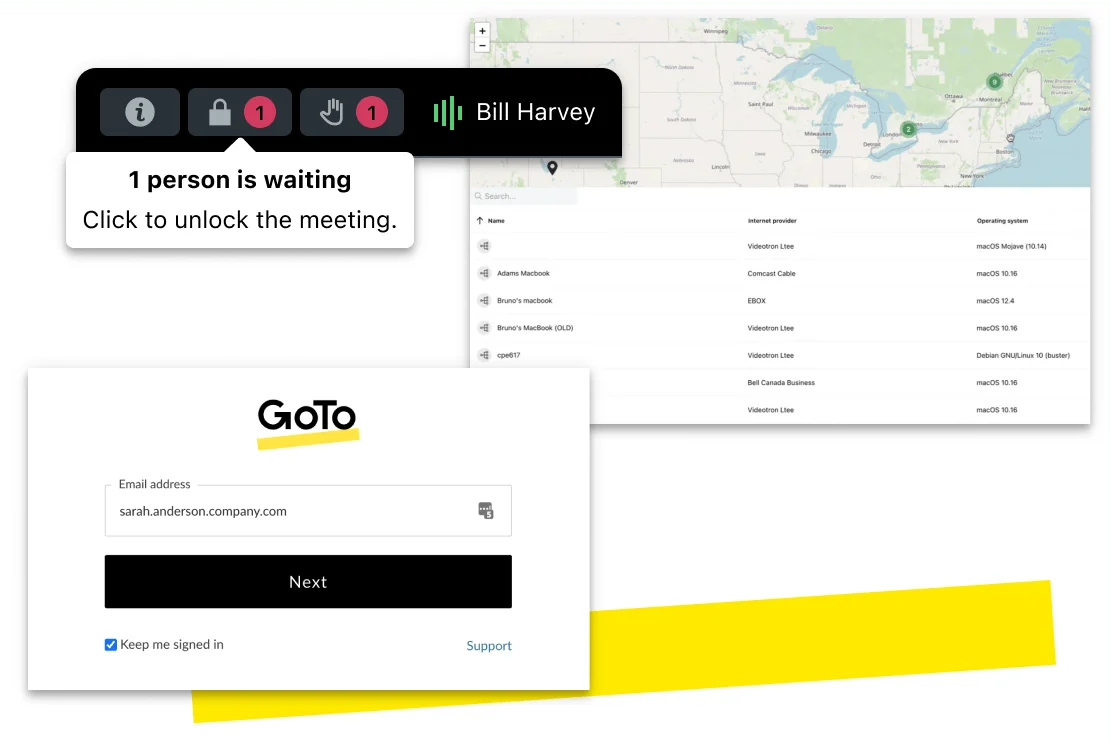
Meeting recording and transcription. Smart Meeting — AI-generated summaries and action items. Personal meeting rooms with custom URLs. Dial-in by phone (PSTN included on all plans — this matters). Drawing tools for screen share annotation. Mobile call switching (switch mid-call from desktop to phone without anyone noticing).
GoTo Meeting Pricing (as of October 2026 — verify at goto.com/meeting/pricing)
| Plan | Price (annual) | Participants | Notes |
|---|---|---|---|
| Professional | $12/user/month | 150 | Unlimited meetings, recordings, PSTN dial-in |
| Business | $16/user/month | 250 | Smart Meeting, drawing tools, note-taking |
| Enterprise | Custom | 3,000 | Admin controls, room systems, SLA |
Pros: Extremely reliable — they’ve been doing this for 20+ years. Phone dial-in included on all plans (most tools charge extra). Clean, non-overwhelming interface. Smart Meeting AI is genuinely useful. No free plan means no time limit issues.
Cons: No free plan (14-day trial only). More expensive than Meet or Teams for the same participant count. No built-in team chat or collaboration beyond meetings. Smaller brand recognition than Zoom — clients may be less familiar.
Who it’s for: Small businesses that host a lot of client meetings and want a dedicated, standalone tool with no distractions. Particularly good for professional services firms (lawyers, consultants, accountants) where call reliability is non-negotiable.
Who should skip it: Teams that want one unified communications platform. GoTo Meeting doesn’t try to be everything — which is exactly what makes some people love it and others walk away.
6. Whereby — Best for Client Calls With Zero Friction
Whereby is the one I recommend most often for small businesses that do client-facing calls.
Here’s why. Send your client a Whereby meeting link. They click it. The call opens in their browser. No download. No account creation. No “waiting for the host.” Just a call.
That’s the entire pitch. And it’s more powerful than it sounds when you’re trying to make things easy for clients who are not tech-savvy.

Key Features
Permanent room URLs that never change (share once, use forever). Custom room names (your-company.whereby.com/consultation). Breakout groups on Business plan. YouTube and Miro integrations built in. Screen sharing, recording, virtual backgrounds. Embeddable video meetings — put a video call directly on your website. Branded rooms with your logo on Business plan.

Whereby Pricing (as of October 2026 — verify at whereby.com/pricing)
| Plan | Price | Rooms | Participants |
|---|---|---|---|
| Free | $0 | 1 | 100 (45-min groups) |
| Pro | $8.99/month | 3 | 200 (unlimited time) |
| Business | $11.99/user/month | Unlimited | 200 |
Pros: Zero friction for external participants — no account, no download. Permanent room URLs are incredibly convenient. Clean, minimal interface. Most affordable paid plan on this list. Good for branded client experiences.
Cons: Less feature-rich than Zoom for internal team calls. Free plan’s 45-minute group limit. Not ideal for large all-hands meetings. Less name recognition — some clients might hesitate at an unfamiliar link.
Who it’s for: Consultants, coaches, freelancers, and small businesses doing a lot of one-on-one or small-group client calls. If reducing friction for external participants is your priority, Whereby wins.
Who should skip it: Large teams that need full communication suites. If you’re running 30-person internal standups and need deep integrations, the bigger tools serve you better.
7. RingCentral Video — Best for Teams That Also Need Phone
RingCentral built its reputation on business phone systems. RingCentral Video is their answer to the “video is eating phone calls” reality of the last decade.
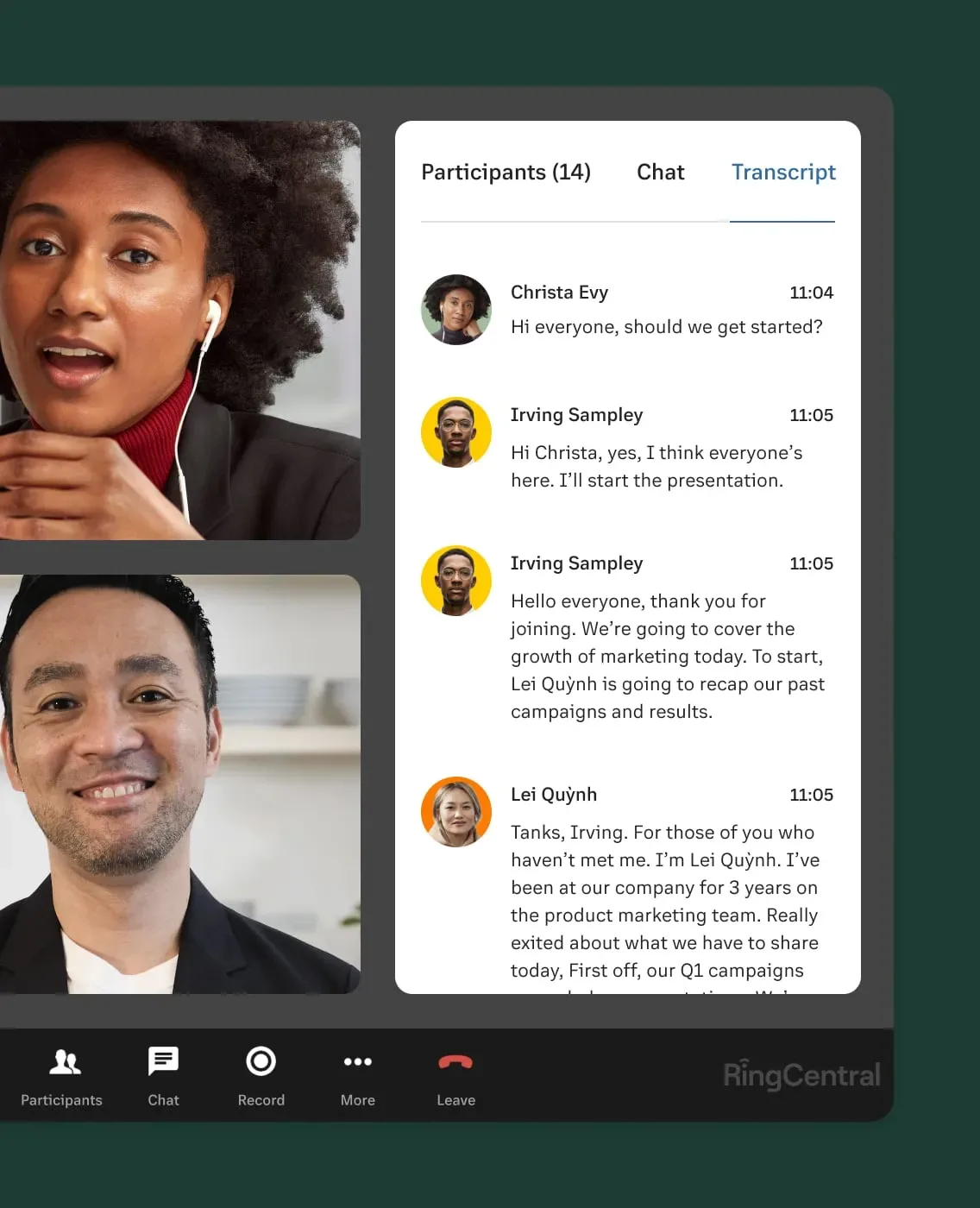
The result: a video conferencing tool that integrates tightly with business phone, SMS, and team messaging in one platform. If you’re shopping for both a phone system and a video tool at the same time, this bundle is worth evaluating seriously.
Key Features
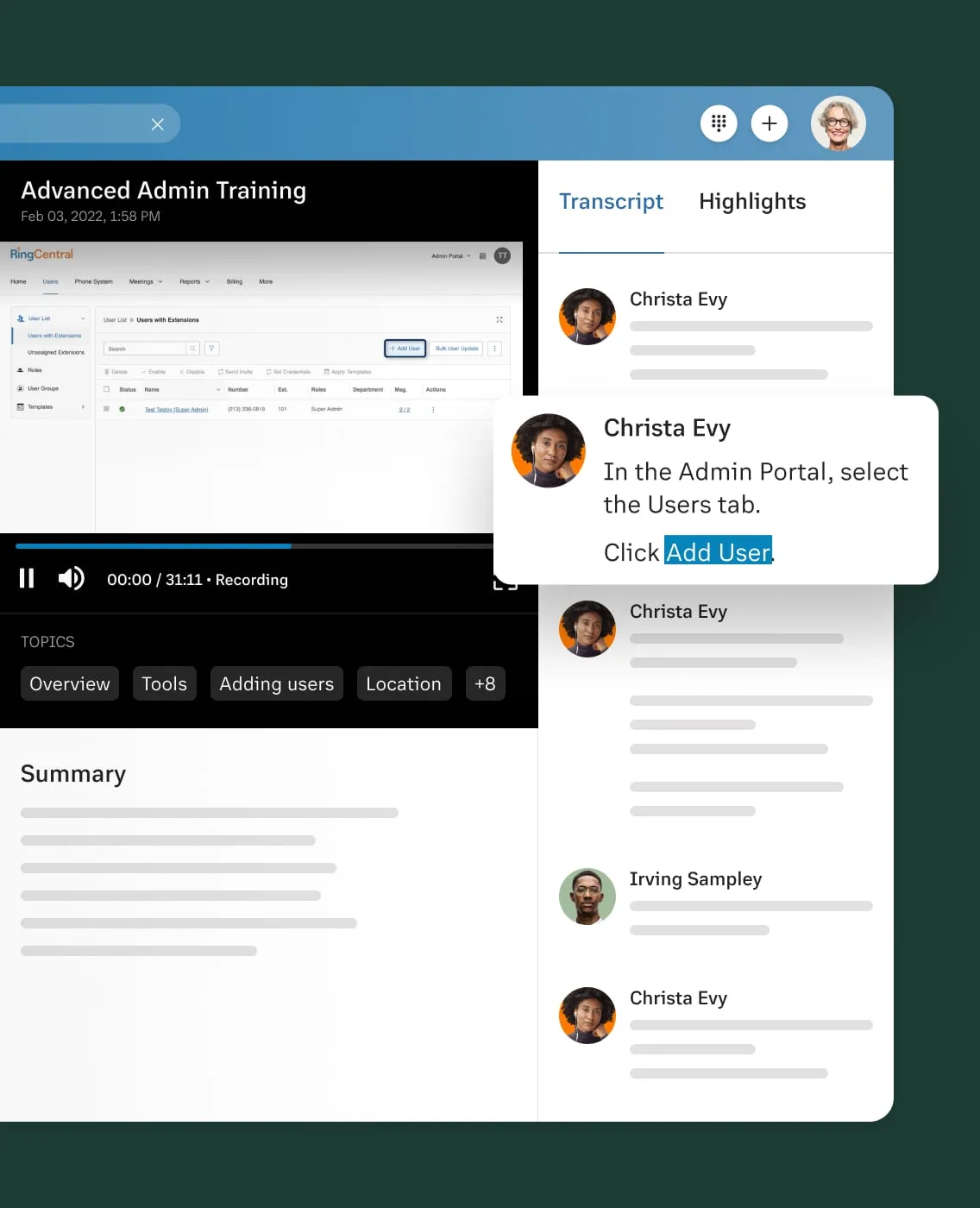
Video meetings + team messaging + phone in one app. Persistent meeting rooms. Live transcription and recording. Whiteboard and annotation tools. Deep CRM integrations (Salesforce, HubSpot). Call flip — move a phone call to a video meeting mid-conversation. Extensive admin controls for multi-location businesses.
RingCentral Pricing (as of October 2026 — verify at ringcentral.com/pricing)
| Plan | Price (annual) | Video Participants | Notes |
|---|---|---|---|
| RingEX Core | ~$20/user/month | 100 | Video + phone + messaging + basic AI |
| RingEX Advanced | ~$25/user/month | 200 | Advanced AI, analytics, multi-site support |
| RingEX Ultra | ~$35/user/month | 500 | Unlimited storage, device analytics |
Pros: Best-in-class phone + video integration. Strong CRM integrations. Good for businesses with multiple offices. Call flip is a genuinely useful feature. Solid reliability track record.
Cons: More expensive than standalone video tools. Complex pricing with add-ons. Overkill if you just need video. Interface can be overwhelming for smaller teams.
Who it’s for: Growing small businesses (10–50 employees) that are consolidating their communications stack and need both a business phone system and video conferencing. The bundle often pencils out better than separate tools.
Who should skip it: Solopreneurs and very small teams. You’re paying for a communications infrastructure you don’t need yet. Come back when you’re scaling.
How to Choose the Right Video Conferencing Tool
Here’s the honest decision framework. Answer these three questions in order:
Question 1: Are you already paying for Google Workspace or Microsoft 365?
Yes → Use Google Meet or Microsoft Teams. You’re paying for it already. Done.
Question 2: Do you have compliance requirements (HIPAA, FedRAMP, financial regulations)?
Yes → Look at Webex. Their compliance infrastructure is the best in this category for SMBs.
Question 3: What’s your primary use case?
- Lots of external client calls → Whereby. Zero friction for clients.
- Mixed internal + external, need maximum reliability → Zoom. The default for a reason.
- Need phone + video bundled → RingCentral Video.
- Meetings only, no other features needed → GoTo Meeting.
Most small businesses don’t need to overthink this. The tool you’ll actually use consistently beats the “best” tool you abandon after two months.
The Bottom Line
Pick one tool. Commit to it. Learn it well.
The video conferencing wars are largely settled. Every major tool works. The differences are around pricing model, integrations, and friction for external participants — not fundamental quality gaps.
Here’s what I’d actually do if I were starting a small business today:
Already on Google Workspace? Use Meet. Already on Microsoft 365? Use Teams. Client-heavy business with external participants? Start with Whereby’s free plan. Need something universally recognized? Zoom Pro at $13/user/month is still the clearest answer.
Pick one. Set up your meeting room. And stop spending time researching video software. Your next client call is more valuable than this comparison.
Pricing verified as of October 2026. Video conferencing pricing changes frequently — always check the vendor’s pricing page before purchasing.