Productivity
Best Screen Recording Tools for Business in 2026: 8 Picked and Ranked
We tested 8 screen recording tools built for business teams. Here's what actually works for async communication, training videos, and visual documentation in 2026.
I spent two weeks recording the same five-minute walkthrough in eight different tools. Same content, same laptop, same subject. The results were wildly different — not in quality, but in what happened after I hit stop.
Some tools made sharing instant. Others buried the file in a folder I had to dig for. One crashed on the third take. One produced something so cinematic I almost felt bad using it for a Jira bug report.
Here’s what I found — ranked, priced, and stripped of the marketing fluff.
Quick Picks
- Best for async video messaging: Loom
- Best for visual communication teams: Zight
- Best for training video creation: Camtasia
- Best for screenshot-heavy workflows: Snagit
- Best free open-source option: OBS Studio
- Best for polished professional recordings: Tella
- Best Mac-only option: Screen Studio
- Best for educators and training teams: ScreenPal
How We Picked These Tools
We evaluated each tool against a strict set of criteria to ensure they’re actually useful for business teams — not just hobbyist recorders:
- Cross-platform availability (or clear Mac/Windows-only labeling)
- Sharing and collaboration features (not just exporting a file)
- Business pricing with clear per-seat or annual options
- Video quality at 1080p minimum, with audio recording
- Editing capabilities (trimming, annotations, captions)
- Integration with common business tools (Slack, Notion, email)
We excluded consumer-grade tools, mobile-only apps, and anything without a business or team pricing tier.
1. Loom — Best for Async Video Messaging

Loom is the screen recorder that practically invented async video communication for business teams. You record, you get a link, you paste it anywhere. That’s it. No file export, no upload, no compression dance. The link works instantly.
It’s particularly good for distributed teams. Instead of scheduling a 30-minute meeting to explain something you could show in 90 seconds, you record a Loom and move on. Reviewers on G2 consistently cite “replacing email threads” as the top use case.
The AI-powered features added in 2025 are genuinely useful: auto-generated titles, summaries, and chapters mean viewers can jump to the part they care about without scrubbing through. The built-in video reactions and comments make follow-up async too.
The weak spot: Loom’s editor is basic. Trimming, cutting silences, adding text overlays — it can do these, but if you need to produce polished training content, you’ll hit its ceiling fast. It’s a communication tool that records screens, not a video production tool.
Best for: Remote teams using async communication. Anyone who regularly explains things over Slack or email and wants to send a video instead.
Pros
- Instant shareable link — no upload wait time
- AI-generated summaries, titles, and chapters
- Viewer reactions, comments, and emoji responses
- Works on Mac, Windows, and as a Chrome extension
- Team workspace with organized video library
Cons
- Basic editor — no multi-track timeline
- Free plan limits video length to 5 minutes
- Pricing scales quickly for larger teams
Pricing
| Plan | Price | Key Limit |
|---|---|---|
| Free (Starter) | $0 | 25 videos, 5 min each |
| Business Starter | $12.50/user/mo (annual) | Unlimited videos, AI features |
| Business | $16.50/user/mo (annual) | AI review, custom branding |
| Business+ | $20/user/mo (annual) | Advanced analytics |
2. Zight — Best for Visual Communication Teams
Zight (formerly CloudApp) is the visual communication tool for teams that live in screenshots and short recordings. It does everything Loom does, but adds annotation-heavy screenshots, GIF creation, and a broader library of capture types in one app.
Where it stands out is the annotation layer. You can draw arrows, add text, blur sensitive information, and highlight elements before sharing — all within Zight’s interface. For support teams, design reviewers, and anyone doing visual QA, this is a genuine time-saver.
The share link is instant (like Loom), but you also get a hosted library where teammates can browse your captures. It integrates cleanly with Slack, Jira, Zendesk, and Intercom, which makes it particularly useful for support and product teams.
The video recording side is solid but less powerful than Loom’s AI features. If async video is your primary use case, Loom edges it out. If you’re doing a mix of screenshots, GIFs, and short videos, Zight might be the better all-rounder.
Best for: Support teams, design reviewers, and anyone doing visual bug reports or QA feedback.
Pros
- Combined screenshot, GIF, and video in one tool
- Powerful annotation layer with blur, arrows, text
- Instant shareable links with viewer analytics
- Integrates with Slack, Jira, Zendesk, Intercom
- Team library for organizing all captures
Cons
- Video recording less powerful than Loom
- UI can feel cluttered with all capture types
- Free plan is limited for regular business use
Pricing
| Plan | Price | Key Limit |
|---|---|---|
| Free | $0 | Limited captures/month |
| Pro | $9.95/month | Unlimited captures, all types |
| Team | $8/user/month (annual) | Shared workspace, analytics |
No embeddable video found — searched official Zight channel, help centre, and YouTube.
3. Camtasia — Best for Training Video Creation
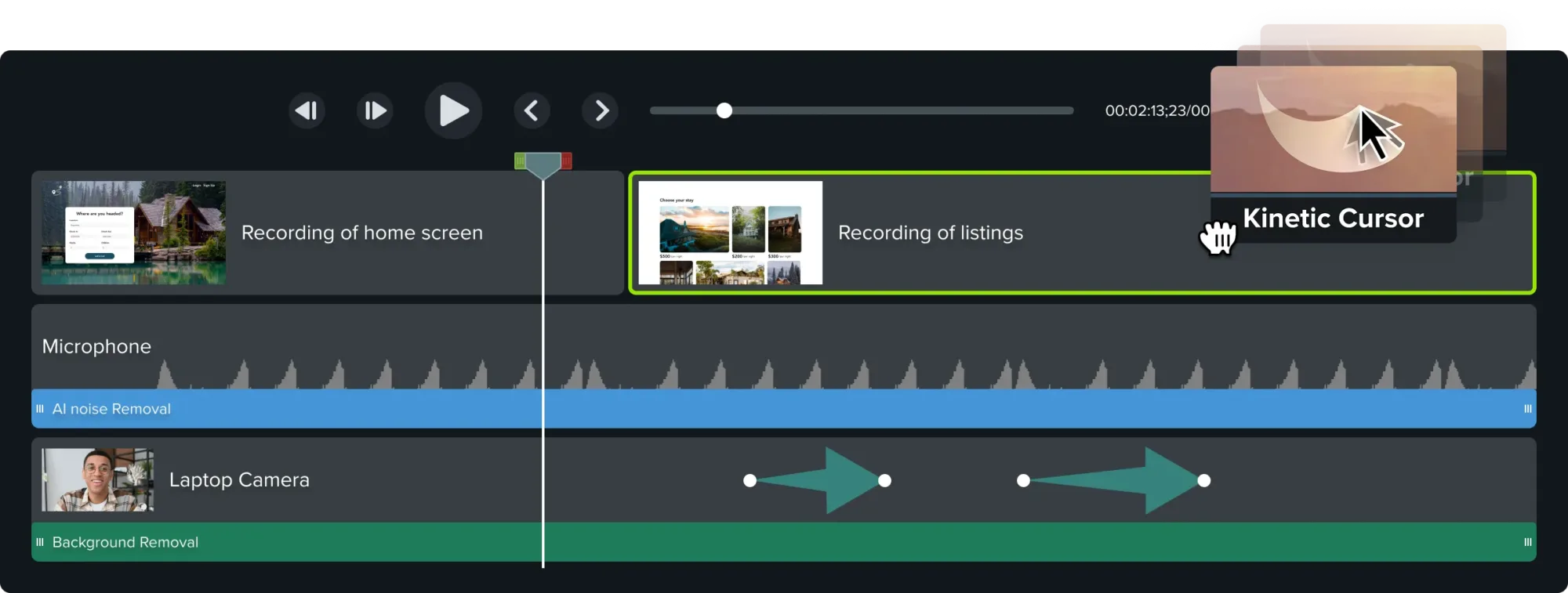
Camtasia is the professional’s choice for screen-recorded training content. It’s been around since 2002, and TechSmith has used all that time to build a multi-track timeline editor that genuinely rivals standalone video editors for tutorial and e-learning production.
What separates Camtasia from the async-first tools is its production depth. You get callouts, annotations, quizzes, captions, zoom-and-pan effects, and a full library of assets — music, intro animations, backgrounds — all built in. If you’re making onboarding videos, product walkthroughs for customers, or LMS content, Camtasia handles the whole pipeline.
The 2026 version added AI-powered text-based editing (via Audiate integration), which means you can edit video by editing a transcript — cut words from the text and the video cuts too. For non-editors, this is genuinely transformative.
The downside is price and complexity. Camtasia costs more than most tools here, and there’s a real learning curve. You don’t use Camtasia for a quick Slack video. You use it when you need polished, reusable training content that will live in an LMS for the next three years.
Best for: L&D teams, instructional designers, and anyone producing customer-facing onboarding or product education content.
Pros
- Full multi-track timeline editor
- AI text-based editing via Audiate integration
- Built-in quiz and interactivity features
- Huge asset library (music, animations, callouts)
- Export to SCORM for LMS integration
Cons
- Steeper learning curve than simpler tools
- Expensive for individuals or small teams
- Overkill if you just need quick async videos
Pricing
| Plan | Price | Notes |
|---|---|---|
| Individual (Annual) | $179.88/year | 1 license, Win + Mac |
| Individual (Monthly) | $54.99/month | Flexible billing |
| Teams | From $199/year/seat | Volume discounts available |
No embeddable video found — searched TechSmith’s official YouTube channel, help centre, and YouTube.
4. Snagit — Best for Screenshot-Heavy Workflows
Snagit is a different animal from the async video tools. It’s built primarily for screenshots — specifically, annotated, organized, and shareable screenshots. The recording capability is there, but it’s video as a supplement, not the main event.
What Snagit does better than anything else is capture. It handles scrolling captures (for long web pages or emails), panoramic screenshots, timed delays, and region captures with pinpoint accuracy. The annotation toolset is the best in class: stamps, callouts, arrows, text, magnify effects, and smart redact (which automatically blurs sensitive data like email addresses and phone numbers).
For technical writers, support staff, and anyone building documentation, Snagit is hard to beat. You capture, you annotate, you drop it into a Google Doc or Confluence page. The workflow is fast. The reviews on Capterra consistently praise it for exactly this use case.
The catch: Snagit isn’t a video-first tool. If your team’s main need is async video communication or recorded walkthroughs, Loom or Zight will serve you better. Snagit’s video recording works, but the editor doesn’t have the depth of Camtasia.
Best for: Technical writers, support teams, and documentation-heavy workflows where annotated screenshots are the primary deliverable.
Pros
- Best-in-class screenshot capture and annotation
- Scrolling and panoramic capture
- Smart Redact for automatic PII blurring
- Step tool for numbered walkthroughs
- Works with Windows and Mac
Cons
- Video editor is limited compared to dedicated tools
- Sharing is less streamlined than Loom or Zight
- Annual pricing with no free tier
Pricing
| Plan | Price | Notes |
|---|---|---|
| Snagit (Annual) | $62.99/year | Win + Mac, 1 license |
| Snagit + Camtasia Bundle | $254.99/year | Both products, 1 license |
| Team pricing | Contact TechSmith | Volume discounts available |
5. OBS Studio — Best Free Open-Source Option
OBS Studio is free, open-source, cross-platform, and more powerful than tools costing $200/year. The catch is that it has the learning curve to match.
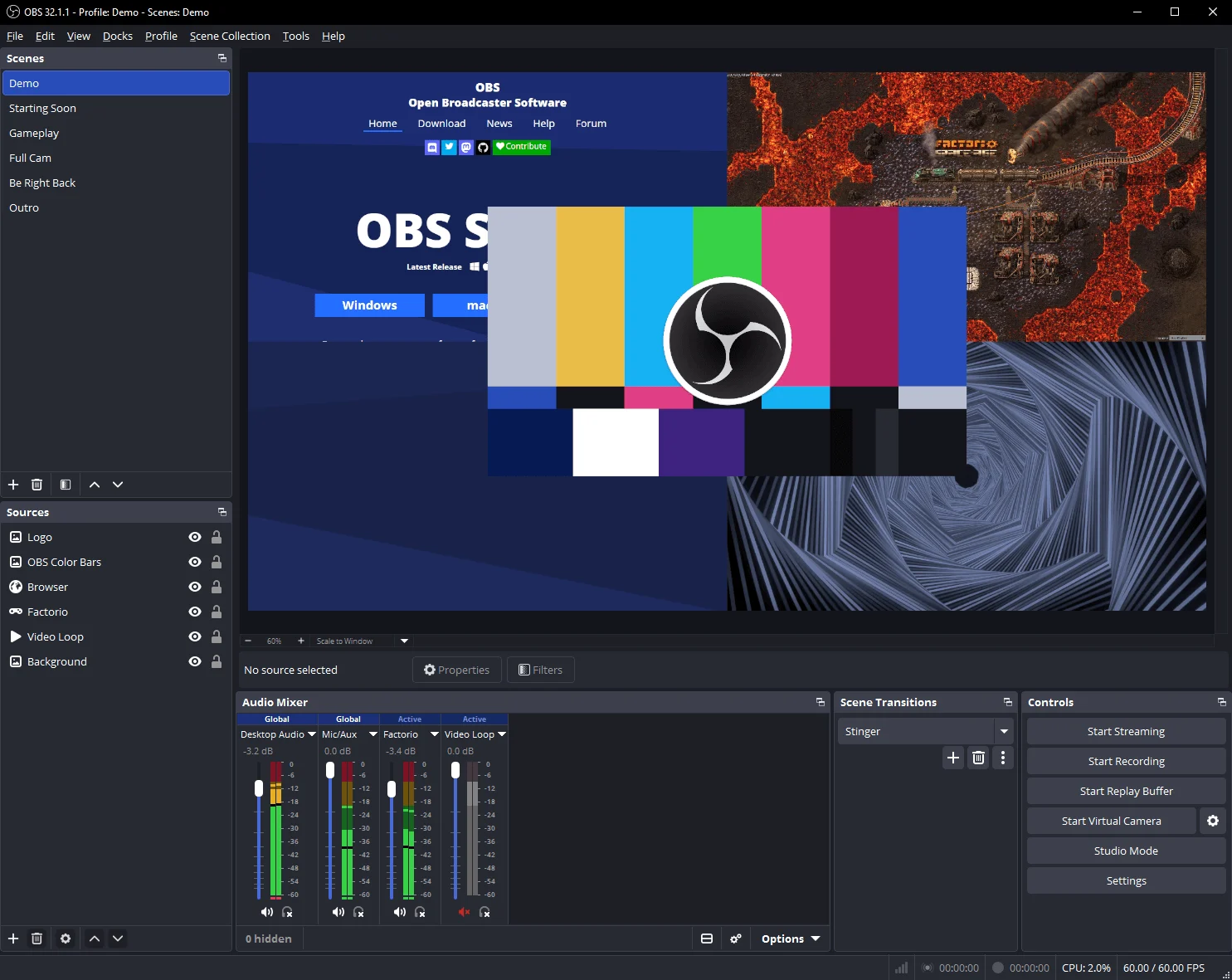
OBS was built for live streaming but works brilliantly as a screen recorder. You get multi-source recording (screen + webcam + audio), scene switching, filters, chroma key, and output settings that professional broadcasters use. For teams that need zero-cost, no-limit recording with maximum control, nothing comes close.
Where OBS falls short for business teams is everything that happens after recording. There’s no built-in editor, no cloud library, no instant share link, and no annotation tools. You record, you get a local file, and you figure out the rest yourself. For a solo technical user who knows their way around video files, that’s fine. For a marketing team that needs a quick turnaround, it’s a workflow bottleneck.
OBS also has no mobile app and no Chrome extension. It’s a desktop application, full stop. But for podcasters, developers streaming demos, or teams that already have a post-production workflow and just need a reliable capture tool, it’s unbeatable at the price.
Best for: Developers, content creators, and tech-savvy teams who need professional recording quality with no ongoing cost.
Pros
- Completely free and open-source
- Multi-source recording (screen + webcam + audio)
- Scene switching and virtual camera support
- No video length limits, no watermarks
- Windows, Mac, and Linux
Cons
- Steep learning curve for new users
- No built-in editor, sharing, or cloud library
- No annotation tools
- Configuration-heavy initial setup
Pricing
| Plan | Price |
|---|---|
| OBS Studio | Free (forever) |
6. Tella — Best for Polished Professional Recordings
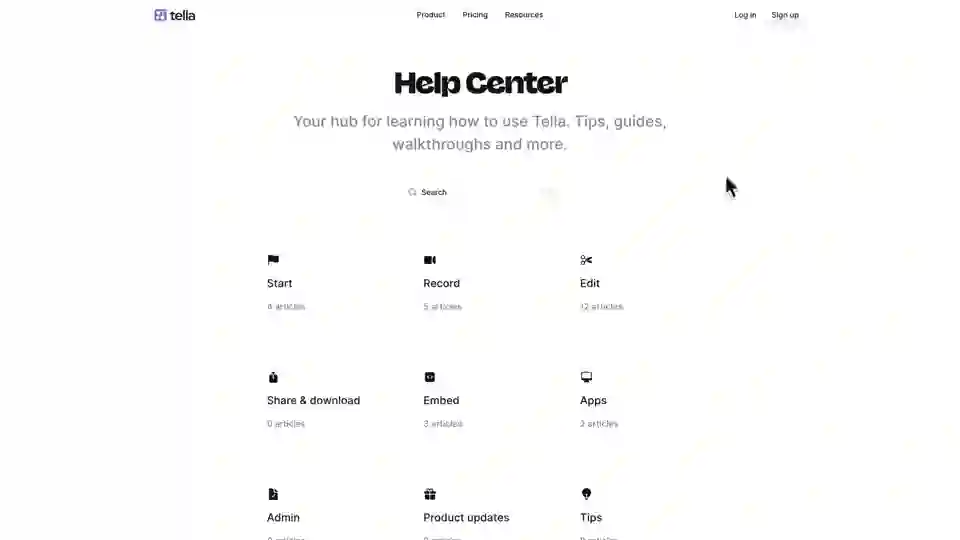
Tella sits in a category of its own: screen recording designed to look good without any editing effort. Where Loom’s recordings look like screen recordings, Tella’s recordings look like produced content.
The difference is in the defaults. Tella gives you dynamic layouts (webcam automatically resizes to fill silences or feature a speaker), branded backgrounds, studio-quality audio processing, and automatic captions. The output is the kind of video you’d normally spend an hour in post-production to achieve — and Tella does it on export.
It’s aimed at product teams, founders, and anyone doing sales outreach or investor demos who needs the recording to reflect their brand without hiring a video editor. The sharing side works similarly to Loom — instant link, viewer analytics, comment threads.
Where Tella falls short is breadth. It doesn’t do annotated screenshots, doesn’t have a mobile capture option, and the editing tools, while beautiful, are less feature-complete than Camtasia or even Loom’s editor for certain tasks. It also doesn’t integrate as deeply with project management tools as Zight.
Best for: Founders, product marketers, and sales teams who want professional-looking video without a post-production workflow.
Pros
- Automatically polished output — great defaults
- Dynamic layouts and branded backgrounds
- Studio-quality audio processing built in
- Automatic captions on all recordings
- Instant share link with viewer analytics
Cons
- No annotated screenshots
- Fewer integrations than Loom or Zight
- Higher price point for Business plan
- Mac + Windows only (no mobile capture)
Pricing
| Plan | Price | Notes |
|---|---|---|
| Free | $0 | Limited recordings and features |
| Pro | $19/month ($12/mo annual) | Unlimited recordings, all layouts |
| Business | $49/month ($30/mo annual) | Team workspace, custom branding |
No embeddable video found — searched Tella’s official YouTube channel, help centre, and YouTube.
7. Screen Studio — Best Mac-Only Option
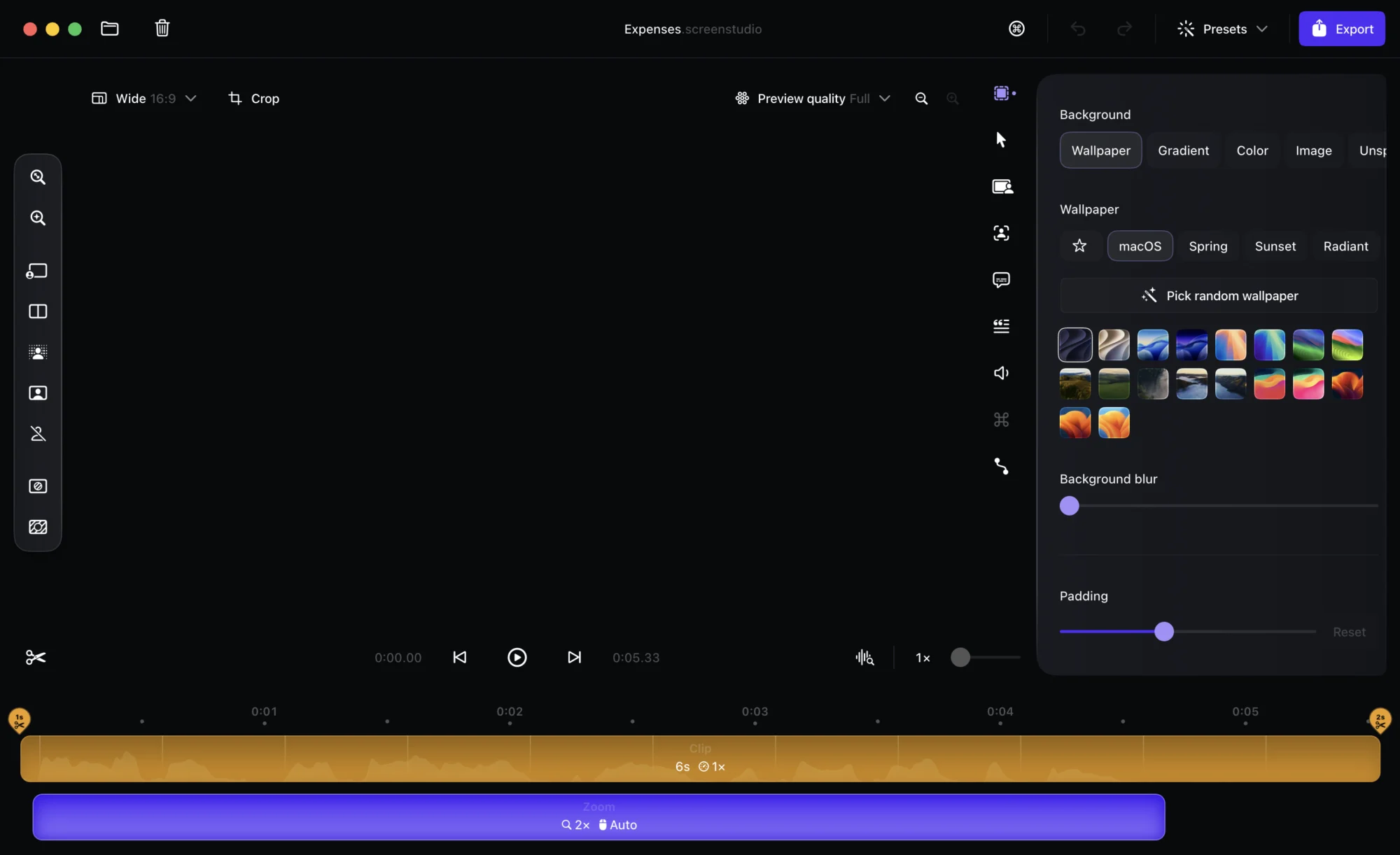
Screen Studio is a Mac-only screen recorder that does one thing extremely well: it makes your recordings look cinematic without any manual animation work.
The standout feature is automatic zoom. Screen Studio detects where you’re clicking and automatically animates the camera to zoom into that area, then zoom back out. The cursor movements get smoothed. The result looks like you had a camera operator following your every click. For product demos and tutorials, it’s genuinely impressive.
It also handles backgrounds natively — you can wrap your screen recording in a device frame, a gradient, or a custom background with a single click. Combined with the auto-zoom and cursor effects, Screen Studio recordings have a distinctive look that’s hard to fake with other tools.
The limitations are significant for business teams. It’s Mac-only, has no cloud sharing built in (you export a file), no team collaboration features, and the one-time purchase model means no subscription perks like cloud storage. But for a Mac-based solo creator or product designer who wants stunning recordings without complex editing, $89 one-time is exceptional value.
Best for: Mac users who want cinema-quality recordings for product demos, tutorials, or portfolio content without a post-production workflow.
Pros
- Automatic zoom-to-click animations
- Smooth cursor effects and motion blur
- Device framing and custom backgrounds
- One-time purchase — no subscription
- Extremely lightweight and fast
Cons
- Mac-only (no Windows, no browser extension)
- No cloud sharing or team library
- No annotation tools
- Export-to-file only (no instant links)
Pricing
| Plan | Price |
|---|---|
| Screen Studio (Mac) | $89 one-time |
No embeddable video found — searched Screen Studio’s official YouTube channel, help centre, and YouTube.
8. ScreenPal — Best for Educators and Training Teams
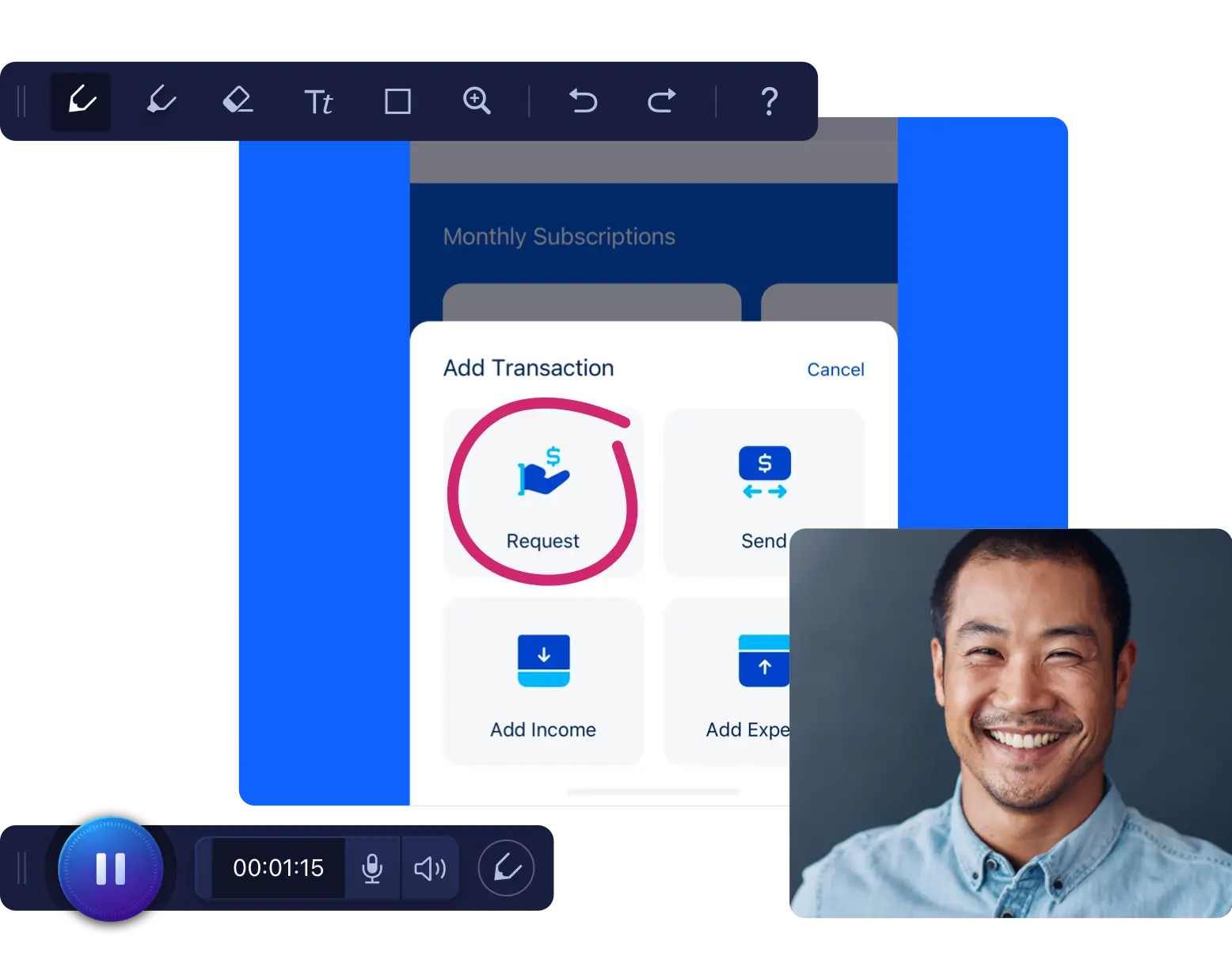
ScreenPal (formerly Screencast-O-Matic) is one of the oldest tools on this list, and it’s found its niche: educational institutions, teachers, and training teams who need a simple, affordable recorder with enough editing tools to produce clean content at scale.
The free plan is genuinely useful — you can record up to 15 minutes with no watermark, which is rare. The paid plans are among the cheapest in this category ($4/month for the Solo Deluxe tier), which makes it accessible for individual educators or solo trainers who can’t justify Camtasia’s price.
ScreenPal includes a video editor, a script teleprompter, automatic captions, and integrations with Google Classroom, Canvas, and other LMS platforms. For academic or corporate training contexts, these integrations can be decisive.
It’s not a design-forward tool. The interface looks dated compared to Tella or Loom, and the recording quality ceiling is lower than Camtasia’s. But for teams that need something simple, affordable, and LMS-integrated, it punches above its price point.
Best for: Educators, training coordinators, and small teams on tight budgets who need LMS integration and basic editing tools.
Pros
- Generous free plan (15 min, no watermark)
- Lowest-price paid tier in this category
- LMS integrations (Canvas, Google Classroom, Schoology)
- Built-in teleprompter for scripted recordings
- Automatic captions and video editor included
Cons
- Dated interface compared to modern alternatives
- Recording quality ceiling lower than Camtasia
- No instant share links (exports or hosted library)
- Limited annotation tools
Pricing
| Plan | Price | Notes |
|---|---|---|
| Free | $0 | 15 min/recording, no watermark |
| Solo Deluxe | $4/month (annual) | Unlimited recording, editor |
| Team Business | $8/user/month (annual) | Team dashboard, LMS integrations |
No embeddable video found — searched ScreenPal’s official YouTube channel, help centre, and YouTube.
Side-by-Side Comparison
| Tool | Starting Price | Platform | Best For | Instant Share Link | Video Editor | Screenshots |
|---|---|---|---|---|---|---|
| Loom | Free / $12.50/user/mo | Win, Mac, Chrome | Async messaging | ✅ | Basic | ❌ |
| Zight | Free / $9.95/mo | Win, Mac, Chrome | Visual QA & support | ✅ | Basic | ✅ |
| Camtasia | $179.88/year | Win, Mac | Training content | ❌ | Professional | Via Snagit |
| Snagit | $62.99/year | Win, Mac | Documentation | ❌ | Basic video | ✅ Advanced |
| OBS Studio | Free | Win, Mac, Linux | Tech-savvy users | ❌ | ❌ (export only) | ❌ |
| Tella | Free / $12/mo | Win, Mac | Polished demos | ✅ | Basic | ❌ |
| Screen Studio | $89 one-time | Mac only | Product demos | ❌ | Auto-animation | ❌ |
| ScreenPal | Free / $4/mo | Win, Mac, Chrome | Educators | ❌ | Basic | ✅ Basic |
How to Choose the Right Tool
Here’s the honest decision tree:
If you mostly send video messages instead of writing emails: Start with Loom. The free plan covers most individual needs. The sharing experience is the best in class and your recipients don’t need an account to watch.
If your team lives in screenshots and visual feedback: Zight is the better all-rounder. The combination of annotated screenshots, GIFs, and short videos in one place is genuinely useful for support and design workflows. If you’re also building out your team’s productivity stack, you might also find value in our guide to the best HR software for small teams.
If you’re building training content for an LMS or internal knowledge base: Camtasia is the professional-grade option. The price is justified if you’re producing reusable content at volume. For lighter training needs with LMS integration at a lower price, ScreenPal is the better fit.
If you document processes with screenshots: Snagit is in a class of its own. Its scrolling capture, Step tool, and annotation depth make it the go-to for technical writers and support documentation teams.
If you need zero ongoing cost and have technical confidence: OBS Studio. Full stop. Just expect to spend an afternoon on the initial setup.
If you’re on a Mac and want cinematic-looking recordings: Screen Studio’s $89 one-time purchase is exceptional value. It won’t replace a team communication tool, but for demos and product content, the output quality is stunning.
If you want recordings that look polished without editing: Tella’s automatic layout adjustments, branded backgrounds, and audio processing produce a quality of output that would take most people an hour in post-production — on export, instantly.
Our Verdict
If I had to pick one tool for most business teams, it’s Loom. The combination of instant sharing, AI-powered features, and cross-platform availability makes it the most versatile choice for distributed teams. The free plan is more than enough to evaluate it properly.
For teams with specific needs, the right tool diverges quickly: Camtasia for L&D teams, Snagit for documentation-heavy workflows, OBS for cost-zero recording, and Screen Studio for Mac-based product demos.
The good news: most of these tools offer a free tier or trial. Start with Loom or Zight for async communication. Add Snagit if your team does heavy documentation. Upgrade to Camtasia if you’re building a training library that will last.
And if you’re evaluating the rest of your team’s software stack, check out our roundups of best appointment scheduling software and best payroll software for small business.
FAQ
What is the best free screen recording tool for business?
OBS Studio is the most powerful free screen recording tool with no limits or watermarks, but it has a steep learning curve. For most business users, Loom’s free plan (25 videos, 5 minutes each) or ScreenPal’s free plan (15 minutes per recording) is a better starting point with easier sharing and built-in editing.
Can I use screen recording tools for training videos?
Yes — Camtasia and ScreenPal are specifically designed for training content. Camtasia offers multi-track editing, quizzes, and SCORM export for LMS integration. ScreenPal is the more affordable option with integrations for Canvas, Google Classroom, and other education platforms.
Is Loom good for business teams?
Loom is one of the top choices for business teams, particularly distributed or remote ones. It excels at replacing long email threads with short explainer videos, and its AI-powered summaries and instant share links make it easy to use at scale. The Business plan starts at $12.50/user/month billed annually.
What’s the difference between Loom and Camtasia?
Loom is built for instant communication — record, share, done. Camtasia is built for production — record, edit on a multi-track timeline, add animations and quizzes, export to LMS. Loom is better for async team communication. Camtasia is better for professional training and educational content that you’ll distribute widely and reuse over time.
Are screen recording tools safe for business use?
Most tools on this list (Loom, Zight, Camtasia, Snagit, Tella) offer enterprise-grade security, including SOC 2 compliance, SSO integration, and access controls. Always verify your specific tool’s compliance certifications against your organization’s requirements, particularly if you’re recording sensitive product information or customer data.
Which screen recorder works on Linux?
OBS Studio is the only tool on this list that officially supports Linux, alongside Windows and Mac. It’s free and open-source, making it the default choice for Linux-based developers and technical teams.
Last updated: October 2026. Pricing and features verified directly from each vendor’s website. Free plan limits and pricing are subject to change — always check the vendor’s current pricing page before purchasing.
Written by the SoftwareReviewHQ editorial team. We test software independently. If you buy through our links, we may earn a commission at no cost to you.
{
“@context”: “https://schema.org”,
“@type”: “Article”,
“headline”: “Best Screen Recording Tools for Business in 2026: 8 Picked and Ranked”,
“description”: “We tested 8 screen recording tools for business teams. Loom, Camtasia, OBS, Snagit, and more — with pricing, use cases, and our top picks for 2026.”,
“datePublished”: “2026-10-24”,
“dateModified”: “2026-10-24”,
“author”: {
“@type”: “Organization”,
“name”: “SoftwareReviewHQ”
},
“publisher”: {
“@type”: “Organization”,
“name”: “SoftwareReviewHQ”,
“url”: “https://softwarereviewhq.com”
}
}