Remote Access Software
7 Best Remote Access Software for 2026 (Tested and Compared)
Compare the 7 best remote access software tools for 2026. Pricing verified live and all major use cases covered. Our top pick: Splashtop at $6/month.
TL;DR: Splashtop is the best remote access software for most people—it’s fast, affordable at $6/month, and doesn’t overcomplicate things. TeamViewer is the enterprise pick if you need advanced integrations. And if you’re managing 10+ endpoints on a budget, RemotePC is shockingly cheap.
Quick Picks: Best Remote Access Software
| Pick | Tool | Starting Price |
|---|---|---|
| Best overall | Splashtop | $6/mo/user |
| Best enterprise | TeamViewer | $24.90/mo |
| Fastest connection | AnyDesk | $28.90/mo |
| Best budget | RemotePC | $1.84/mo |
| Best for IT teams | Zoho Assist | $10/mo |
| Best for MSPs | ScreenConnect | $62/mo/tech |
| Best open source | RustDesk | Free |
How I Evaluated These Tools
This roundup covers 20+ remote access and remote control software tools, narrowed to the 7 that actually matter. Here’s what I cared about:
- Connection reliability. A tool that drops or lags during a session is useless.
- Cross-platform support. You need Windows-to-Mac, mobile, etc.
- Security. AES-256 encryption and 2FA are table stakes in 2026.
- Pricing clarity. No “contact us for pricing” cop-outs where possible.
- Use-case fit. Individual remote work, IT help desk, and MSP needs are different. I matched tools to scenarios.
I excluded tools that only do screen sharing (like Google Meet or Zoom), cloud-only desktop environments (like Amazon WorkSpaces), and anything that hasn’t updated since 2022.
1. Splashtop — Best Overall
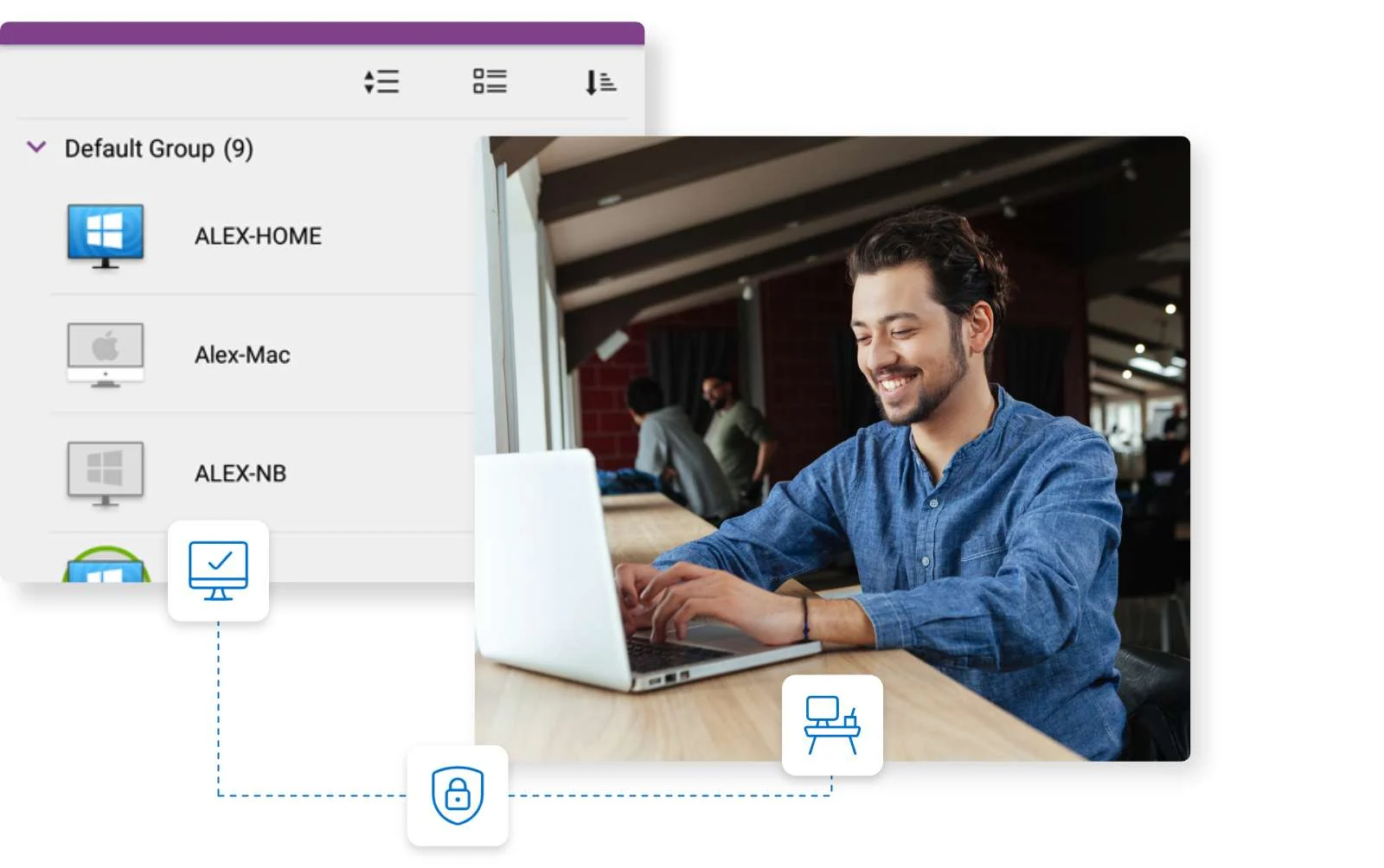
Best for: Individuals, small teams, and businesses that want fast, reliable remote access without overpaying.
Splashtop has quietly become the best remote access software for most people, and the price is a big reason why. At $6/month per user (billed annually) for Business Access, you get unlimited remote sessions, file transfer, remote print, and cross-platform support—all with sub-200ms latency that makes it feel like you’re sitting at the desk.
The setup takes about 5 minutes. Install the streamer app on the computer you want to access, install the business app on your device, and you’re in. No firewall configs. No VPN required.
What stands out: Splashtop’s connection quality holds up over lower-bandwidth connections better than most competitors. It maintains a usable session at 2 Mbps where competitors would have been a slideshow.
Where it falls short: The dashboard feels dated compared to newer tools. Session recording requires the Pro plan ($13/month/user). There’s no built-in ticketing or helpdesk module if you’re doing IT support at scale—you’ll need to pair it with something else.
Pricing (verified November 2026, splashtop.com/pricing):
- Business Access: $6/month per user (billed annually)
- Business Access Pro: $13/month per user (billed annually)
- Enterprise: Custom pricing
Verdict: If you only need reliable remote access for yourself or your team, start here. It’s the best balance of price, performance, and ease of use.
2. TeamViewer — Best for Enterprise

Best for: Large organizations that need advanced integrations, centralized device management, and enterprise-grade compliance.
TeamViewer is the name everyone knows in remote control software, and for good reason. It’s been around since 2005 and has built up an extraordinary feature set: remote access, remote support, IoT device monitoring, AR-assisted remote support, and integrations with ServiceNow, Salesforce, and Microsoft Teams.
The remote session quality is excellent. File transfer is fast. The connection dashboard shows device health, software inventory, and Windows Update status—all without opening a session.
The catch: it’s expensive. The entry-level Business plan starts at $24.90/month (annually). The Premium plan—which most IT teams will need—costs $98.90/month. And they’ve had a reputation for flagging personal-use accounts as “commercial use” and throttling sessions without warning.
For enterprise, though, those complaints largely disappear. When you’re paying for a Tensor license ($245.90/month) you get 99.9% uptime SLAs, single sign-on, granular conditional access, and proper compliance reporting. It’s a different product at that level.
If you’re managing remote teams across multiple locations, the centralized device management console alone is worth the premium.
Pricing (verified November 2026, teamviewer.com/en/pricing):
- Business: $24.90/month (1 user, billed annually)
- Premium: $98.90/month (up to 15 users, billed annually)
- Corporate: $174.90/month (up to 30 users, billed annually)
- Tensor (enterprise): $245.90/month+ (custom)
Verdict: Too expensive for individuals or small teams. The right choice for mid-market and enterprise IT departments that need compliance reporting, integrations, and device monitoring.
3. AnyDesk — Best for Connection Speed
Best for: Developers, designers, and anyone who needs to work on a remote computer with minimal visual lag.
AnyDesk built its reputation on speed. The DeskRT codec is optimized for low-latency connections, and it shows—AnyDesk sessions feel noticeably more responsive than TeamViewer and comparable to Splashtop in real-world use.
The UI is clean. The 7-digit ID system makes ad-hoc connections simple. File transfer works via drag-and-drop. And the mobile apps (iOS and Android) are genuinely usable for unattended access.
Where AnyDesk stands out is the customization: you can build a branded remote support tool using the Custom Client feature, complete with your own color scheme and logo. That’s useful for MSPs and IT teams who want to present a professional face to end users.
The weaknesses: AnyDesk had a security breach in early 2024 that damaged its reputation. They’ve since overhauled their security infrastructure, but it’s something to know about. Also, the management console (my.anydesk II) has improved but still lags behind TeamViewer and ScreenConnect in depth.
Pricing (verified November 2026, anydesk.com/en/pricing):
- Sole Use: $28.90/month (1 user, billed annually)
- Professional: $43.90/month (1 user + 50 devices, billed annually)
- Performance: $79.90/month (single session, billed annually)
- Enterprise: $111.90/month+ (billed annually)
Verdict: Best choice for individuals and small teams who prioritize speed and want customization options. Not the enterprise go-to, but a solid mid-market option.
4. RemotePC — Best Budget Option
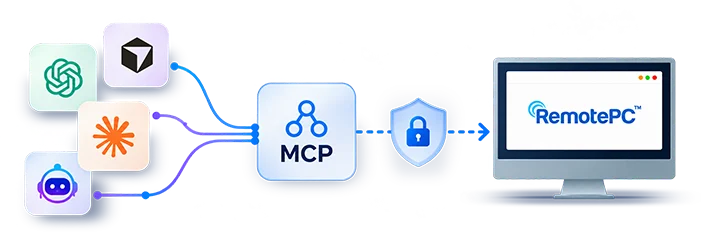
Best for: Small businesses and home users who need reliable remote access to multiple computers without spending much.
RemotePC is the most underrated tool on this list. At $1.84/month for the Consumer plan (billed annually), you get access to 2 computers. The Team plan at $18.72/month covers 10 computers with unlimited technicians. Those prices are genuinely hard to beat.
The software works. Connection quality is reliable for everyday use—file transfer, remote control, remote printing. The interface looks like it was designed in 2016, which it probably was, but everything functions as expected.
RemotePC also includes a built-in screen recording feature (even on lower-tier plans), which you don’t get from Splashtop without upgrading. For compliance-conscious teams, that’s worth noting.
Where it struggles: performance on high-resolution displays can be choppy. The mobile apps are functional but not polished. And there’s no helpdesk module—this is strictly unattended access and remote control software, nothing more.
Pricing (verified November 2026, remotepc.com/pricing):
- Consumer: ~$1.84/month (2 computers, billed annually)
- Solo: ~$6.22/month (1 computer + mobile, billed annually)
- Team: ~$18.72/month (10 computers, billed annually)
- Enterprise: ~$37.47/month (50 computers, billed annually)
Verdict: If budget is your top constraint, RemotePC is the pick. Don’t expect a premium experience, but it works and the value is unmatched at this price point.
5. Zoho Assist — Best for IT Support Teams

Best for: IT helpdesks and support teams that want attended + unattended access in one platform with ticketing integration.
Zoho Assist is Zoho’s remote support product, and it fits neatly into the Zoho ecosystem. If you’re already using Zoho Desk for ticketing, the integration is seamless—technicians can launch a remote session directly from a ticket.
The unattended access module supports Windows, Mac, and Linux. Session recording is included on the Professional plan. There’s a co-browsing feature for browser-only support sessions, which is useful for SaaS companies doing customer support.
The free plan (up to 5 unattended computers and 1 concurrent technician) is generous enough to test whether this fits your workflow. For serious use, the Standard plan at $10/month covers 1 technician with unlimited unattended computers.
The weak spot is performance. Zoho Assist sessions feel slightly more sluggish than Splashtop or AnyDesk, particularly over high-latency connections. And if you’re not in the Zoho ecosystem, the integrations with non-Zoho tools are limited compared to TeamViewer.
For teams doing customer-facing support, pair Zoho Assist with a tool like screen recording software to document sessions for training.
Pricing (verified November 2026, zoho.com/assist/pricing.html):
- Free: 5 unattended computers, 1 technician
- Standard: $10/month (1 technician, billed annually)
- Professional: $15/month (billed annually)
- Enterprise: $24/month (billed annually)
- Unattended Access Enterprise: up to $75/month (billed annually)
Verdict: The right pick for IT teams already in the Zoho ecosystem. Competitive pricing and a solid feature set for helpdesk use. Not the fastest, but reliable.
6. ScreenConnect (ConnectWise) — Best for MSPs
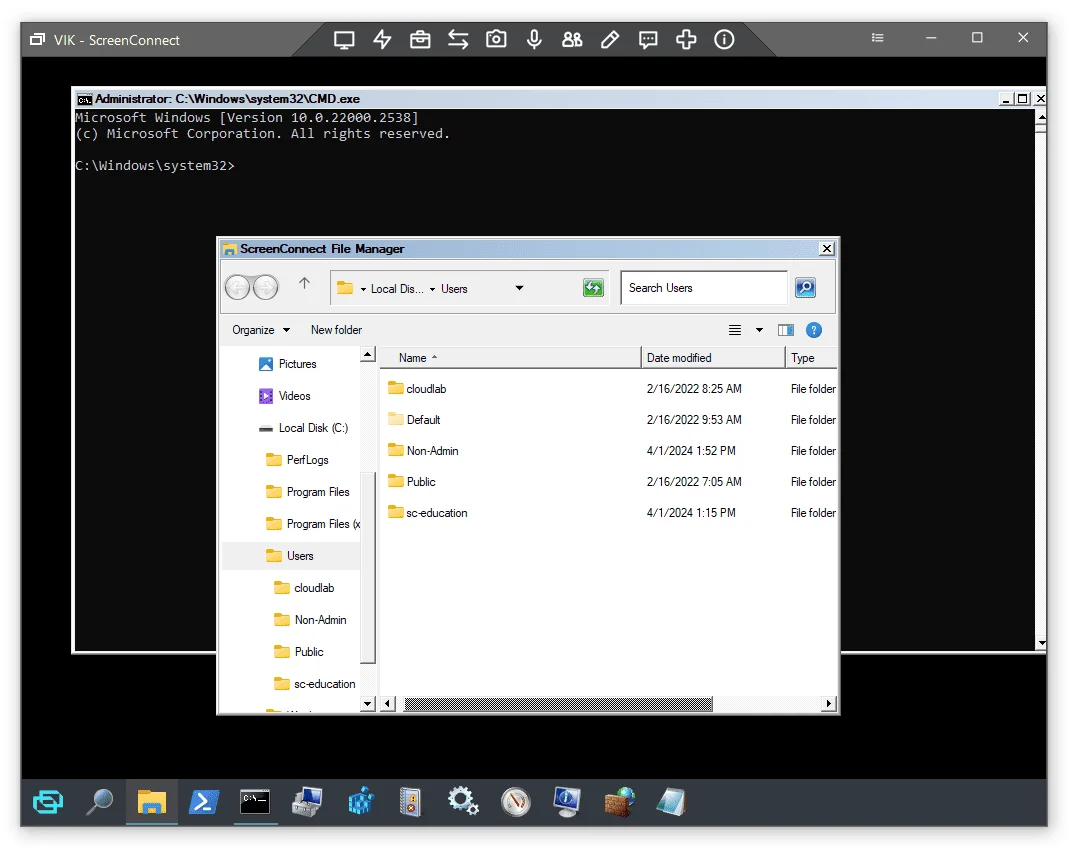
Best for: Managed service providers and IT departments that need enterprise-grade remote access with deep endpoint management.
ScreenConnect (formerly ConnectWise Control) is the power user’s tool. The session console gives you more control than any other product on this list: Backstage mode (run diagnostics silently without disturbing the user), advanced machine management, session recording, remote toolbox, Wake-on-LAN, and an extensions marketplace for custom integrations.
The pricing model is per-concurrent-technician, which works well for MSPs who have more clients than simultaneous sessions. One tech license gets you unlimited unattended devices.
The administration console is comprehensive—maybe too comprehensive if you’re new to it. The learning curve is steeper than Splashtop or AnyDesk. But for a team managing 500+ endpoints, the depth is a feature, not a bug.
The on-premises deployment option is unique: you can self-host ScreenConnect on your own server, which matters for clients with strict data residency requirements.
If you’re comparing remote access options for a video conferencing and collaboration stack, ScreenConnect fills the IT support side while other tools handle the communication side.
Pricing (verified November 2026, screenconnect.com/pricing):
- One: Offered annually only, 1 session, 10 unattended agents
- Standard: $62/month per concurrent tech (billed monthly)
- Premium: Higher price, 10 sessions per tech, remote diagnostics toolkit
- Remote Access (Unattended): from $35/month (billed annually)
Verdict: The MSP and IT department pick. More complex than consumer tools, but the depth and self-hosting option justify it for professional use. Not worth the complexity for individuals or small teams.
7. RustDesk — Best Free/Open Source Option
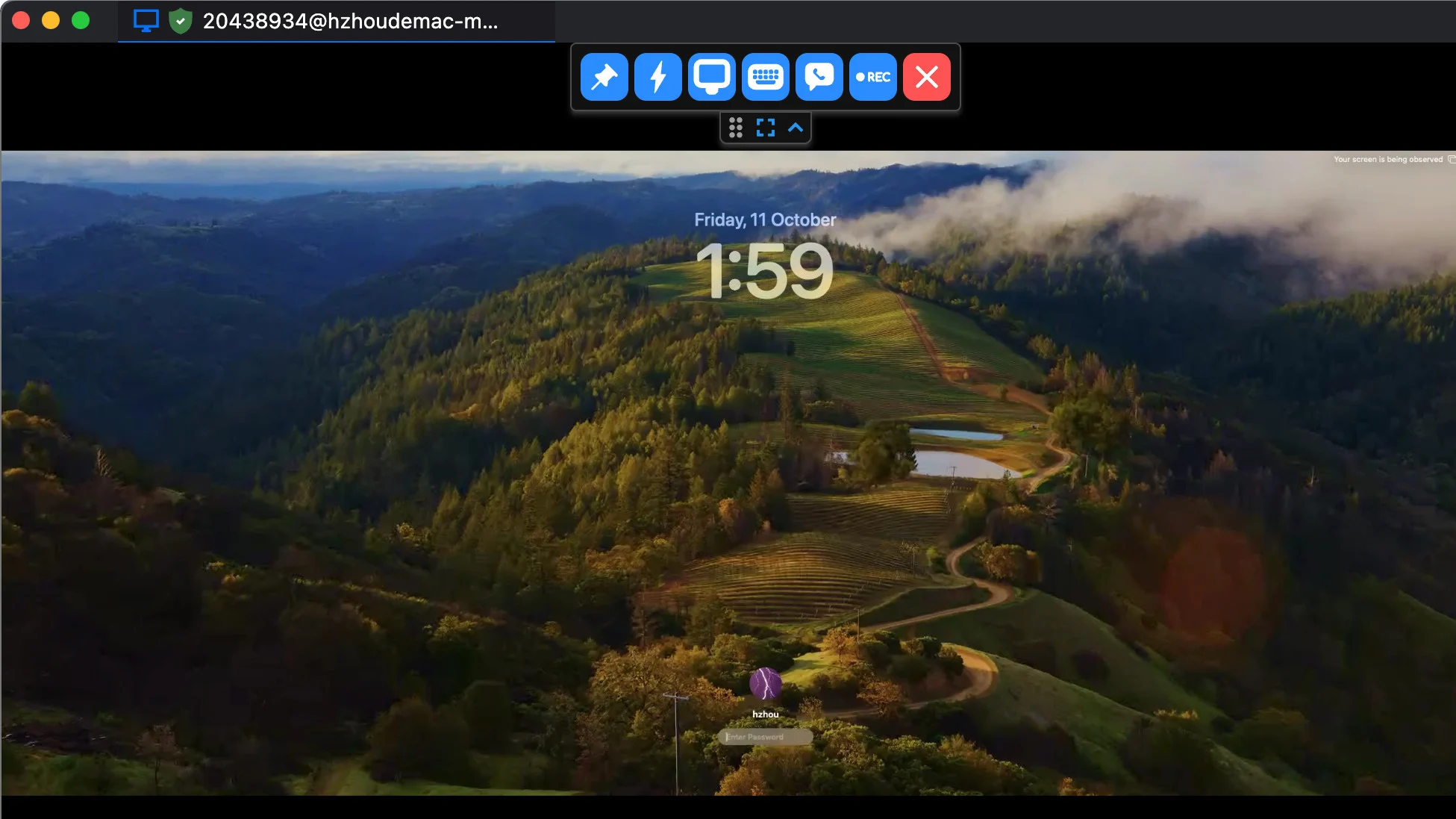
Best for: Technical teams, developers, and IT departments that want full control over their remote access infrastructure.
RustDesk is open-source remote desktop software built in Rust, and it’s the only tool on this list that’s genuinely free for self-hosted use. You run your own relay server, your data never touches a third-party cloud, and the codebase is auditable on GitHub.
The connection quality is surprisingly good for an open-source project—on the same LAN or a low-latency connection, it matches the commercial tools. File transfer, clipboard sync, and cross-platform support (Windows, Mac, Linux, Android, iOS) are all there.
The hosted version (RustDesk Pro) starts at a reasonable price point for teams that want managed infrastructure without the operational overhead of running their own server.
Where it falls short: the UI feels barebones compared to Splashtop or TeamViewer. There’s no helpdesk module, no ticketing integration, and the mobile experience is functional but not polished. For enterprise compliance requirements, you’d need to do significant configuration work.
Pricing (verified November 2026, rustdesk.com):
- Self-hosted (open source): Free
- RustDesk Pro (hosted): Contact for pricing
Verdict: The best option for technically inclined teams who want zero vendor lock-in and full data control. Not a good choice if you need a plug-and-play experience.
Remote Access Software Comparison Table
| Tool | Starting Price | Unattended Access | Cross-Platform | Self-Hosted | Best For |
|---|---|---|---|---|---|
| Splashtop | $6/mo/user | Yes | Yes | No | Most teams |
| TeamViewer | $24.90/mo | Yes | Yes | No | Enterprise |
| AnyDesk | $28.90/mo | Yes | Yes | No | Speed/perf |
| RemotePC | $1.84/mo | Yes | Yes | No | Budget |
| Zoho Assist | $10/mo | Yes | Yes | No | IT helpdesk |
| ScreenConnect | $62/mo/tech | Yes | Yes | Yes | MSPs |
| RustDesk | Free | Yes | Yes | Yes | Open source |
How to Choose Remote Access Software
Here’s the decision framework I use:
You’re an individual or small team (1–10 people): Start with Splashtop Business Access at $6/user/month. It’s the right balance of performance, features, and cost.
You need the cheapest option possible: RemotePC. Full stop.
Your company has 50+ employees and you need compliance + integrations: TeamViewer Premium or Corporate. The price is high, but the security, audit logs, and SSO support make it defensible.
You’re an MSP managing client endpoints: ScreenConnect. The per-tech licensing model and self-hosting option are purpose-built for this use case.
You’re in the Zoho ecosystem: Zoho Assist. The ticketing integration alone saves 2-3 hours a week for a support team.
You want maximum control over your data: RustDesk self-hosted. If you have the technical capacity to run your own relay server, it’s unbeatable.
You need the fastest connection for graphics-heavy work: AnyDesk. The DeskRT codec holds an edge in high-fps scenarios.
Verdict
The best remote access software in 2026 is Splashtop—for most people. It’s fast, affordable, and doesn’t overcomplicate something that should be simple.
If you’re managing an enterprise IT environment, TeamViewer is the right pick despite the cost. If you’re an MSP, go with ScreenConnect for the depth and self-hosting option.
The clearest market inefficiency here: RemotePC is significantly underpriced relative to what it delivers. If you’re budget-conscious and don’t need enterprise features, it deserves a serious look.
Remote control software has matured to the point where any of the paid options on this list will cover the basics reliably. The real differentiator is how they handle edge cases: multi-monitor setups, high-latency connections, compliance requirements, and large device fleets. Know which of those you need before you pick.
FAQ
What is remote access software?
Remote access software lets you view and control a computer from another device over the internet. You can move the mouse, type, transfer files, and run applications as if you were sitting in front of the remote machine. It’s used for IT support, working from home, accessing office computers while traveling, and managing servers.
Is remote access software secure?
The tools on this list use AES-256 encryption for session data and require authentication on both ends. Most support two-factor authentication (2FA). The main security risk is weak passwords or unpatched software—not the encryption itself. Enable 2FA, use strong passwords, and keep your software updated.
What’s the difference between remote access and remote desktop?
Remote desktop typically refers to Windows’ built-in RDP (Remote Desktop Protocol), which creates a full virtual desktop session. Remote access software (like the tools in this article) is a broader category that includes unattended access, attended support sessions, and cross-platform connections that work without IT configuration. Most remote access software is easier to set up and works across more operating systems than raw RDP.
Can I use remote access software on mobile?
Yes—all seven tools on this list have iOS and Android apps. Quality varies: Splashtop and TeamViewer have the most polished mobile experiences. For serious use, a tablet is better than a phone due to screen size, but smartphone sessions work for quick checks.
How much does remote access software cost?
Prices range from free (RustDesk self-hosted) to $245.90/month (TeamViewer Tensor) depending on features and scale. Most individual users will spend $6–$29/month. Teams of 5–20 people typically pay $30–$100/month total. MSP and enterprise pricing varies by number of devices and technicians.